How to Tell if Your WordPress Site is Hacked: Complete Detection Guide
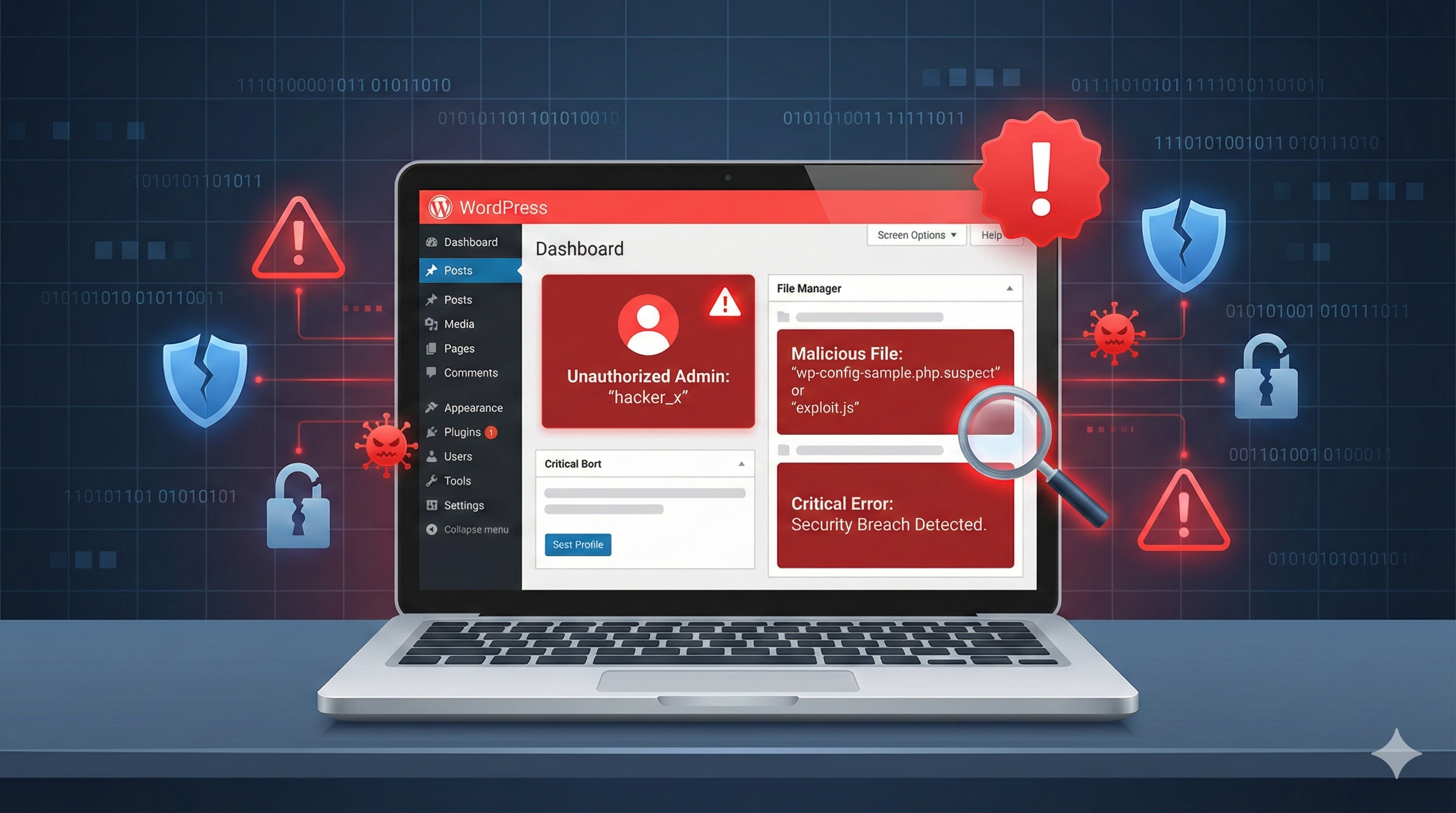
Discover comprehensive signs that indicate your WordPress site has been hacked and learn how to detect compromises before they cause serious damage.
How to Tell if Your WordPress Site is Hacked: Complete Detection Guide
Table of Contents
- Introduction
- Why Detection Matters
- Early Warning Signs
- Technical Indicators of a Hacked Site
- Search Engine and SEO Red Flags
- Performance and Traffic Anomalies
- Database and File System Changes
- User Account Compromises
- Visitor Experience Issues
- Tools to Detect Website Compromises
- Step-by-Step Detection Process
- What to Do If You Find Evidence
- Prevention Best Practices
---
Introduction {#introduction}
Discovering that your WordPress site has been hacked can feel like a digital violation. However, the earlier you detect the compromise, the better chance you have of minimizing damage and recovering quickly. This comprehensive guide will teach you how to identify the signs of a hacked WordPress site, from subtle warning signals to obvious red flags that demand immediate action.
A hacked WordPress site isn't always immediately obvious. Attackers are increasingly sophisticated, often working quietly in the background to exploit your site for their benefit without disrupting normal operations. Some hackers may use your site for SEO spam, others might inject malware, and some could be stealing sensitive data from your visitors.
The key to protecting your WordPress installation is understanding what a compromised site looks like. By learning to recognize the warning signs, you'll be able to catch attackers before they cause significant damage to your reputation, search rankings, and visitor trust.
---
Why Detection Matters {#why-detection-matters}
Early detection of a WordPress compromise is absolutely critical for several reasons:
Reputation Protection: Search engines like Google actively penalize hacked websites by removing them from search results or displaying warning messages to users. The longer your site remains compromised, the more damage to your online reputation.
Data Security: Hackers often install tools to capture sensitive information from your visitors, including usernames, passwords, credit card data, and personal information. Every day your site remains compromised puts your visitors at risk.
Financial Impact: A hacked site can lead to significant financial losses through lost revenue, expensive recovery services, and potential legal liability if visitor data is stolen.
Malware Spread: Your site can become a vector for spreading malware to your visitors' computers. This not only damages your reputation but can also expose you to legal liability.
SEO Recovery Time: Once Google marks your site as hacked, recovery can take weeks or months—even after you've cleaned everything. Early detection means faster recovery time.
---
Early Warning Signs {#early-warning-signs}
1. Unexpected WordPress Admin Notifications
WordPress often sends you emails about important events. If you're receiving notifications about:
- New user registrations you didn't authorize: This is a classic sign that attackers have gained admin access
- Plugin or theme installations: Legitimate websites rarely install random plugins
- Password change notifications: If you didn't change your password, someone else did
- New posts or pages you didn't create: Hackers often post spam content or malware
Check your email notifications carefully. If you have WordPress notifications disabled, log in to your admin dashboard immediately and check the user list for unfamiliar accounts.
2. Your Site Appears in Google Search Results Differently
If you search for your site on Google and notice:
- Strange page titles or descriptions that you didn't write
- Your site appearing for keywords you don't target (especially gambling, pharmaceuticals, or adult content)
- "This site may be hacked" warning displayed by Google
- Significant drop in search rankings without any changes you made
These are strong indicators of SEO injection or malware specifically designed to manipulate your search visibility.
3. Unexpected Changes to Your Website
Visit your own website and carefully inspect the homepage and a few other pages. Look for:
- Unfamiliar links embedded in content
- Strange images or banners advertising products you don't sell
- Redirects to other websites when you click on links
- Completely different homepage than what you remember
- Additional text or code at the top or bottom of pages
Sometimes these changes are subtle and only visible in the page source code, which we'll discuss later.
4. Emails from Your Hosting Provider or Security Services
If you receive emails from:
- Your hosting company: They may have detected suspicious activity or malware on your account
- Google Search Console: Warning about malware detected on your site
- Security scanning services: Automated alerts about vulnerabilities or compromises
- Visitors or colleagues: "Your site infected me with a virus" or "Your site is showing weird content"
Never ignore these notifications. They're valuable early warnings from external parties who've detected something wrong.
---
Technical Indicators of a Hacked Site {#technical-indicators}
1. Strange Files and Directories
Hackers typically upload files to your site to maintain access and run malicious code. To check for suspicious files:
Access your site via FTP or File Manager:
- Look for newly created directories (check modification dates)
- Search for suspicious PHP files, especially in unexpected locations
- Look for files with random names like
wp-5f2d.phpor similar obfuscated filenames - Check your
/wp-content/uploads/directory for files with.php,.exe, or.binextensions - Examine hidden files and directories (those starting with a dot)
Common suspicious locations include:
wp-admin/includes/wp-includes/- Root directory of your site
/wp-content/plugins/directory (especially for unused plugins)
2. Suspicious Database Entries
Your WordPress database often contains tell-tale signs of compromise. To inspect your database:
Access phpMyAdmin or your database management tool:
Look for:
- Unfamiliar admin users in the
wp_userstable - Spam posts in the
wp_poststable with suspicious titles like "cheap viagra" or "casino games" - Malicious JavaScript injected into post meta data
- Unfamiliar options in the
wp_optionstable that you didn't set - Spam comments that reference external malicious domains
Query to find suspicious admin users:
SELECT * FROM wp_users WHERE user_registered > DATE_SUB(NOW(), INTERVAL 7 DAY);
This shows all users registered in the last 7 days—a good indicator of recently added accounts.
3. .htaccess File Modifications
The .htaccess file controls how your web server processes requests. Hackers often modify this file to:
- Redirect visitors to malicious sites
- Inject malicious code into every page served
- Block legitimate access while allowing their own
If you access your .htaccess file and see unusual rewrite rules or suspicious code that you didn't add, your site is likely compromised. Look especially for:
- Redirect rules pointing to external domains
mod_rewriterules with suspicious patterns- Base64-encoded content
- PHP eval() or system() function calls
4. Modified WordPress Core Files
WordPress core files should never be modified by plugins or themes. If core files have been altered, that's a serious sign of compromise.
Check these files for unauthorized modifications:
wp-login.phpwp-config.phpindex.phpwp-load.php
You can verify file integrity by:
- Comparing file sizes with a fresh WordPress installation
- Checking modification dates against your last update
- Using security plugins that verify file checksums
- Downloading fresh files from wordpress.org and comparing
5. Code Injection in Functions.php
The functions.php file in your theme is a common injection point. Hackers add malicious code here because:
- It's executed on every page load
- It's often overlooked by site owners
- Changes blend in with legitimate theme customizations
Inspect your /wp-content/themes/your-theme/functions.php for suspicious code, especially:
eval()orbase64_decode()functions- External URLs being loaded
- Unusual variable names or obfuscated code
- Code you definitely didn't write
---
Search Engine and SEO Red Flags {#search-engine-red-flags}
1. Google Search Console Warnings
Access your Google Search Console immediately if you suspect compromise:
- Navigate to Security & Manual Actions
- Look for any warnings about malware or hacked content
- Check Search Traffic → Sitelinks for unusual results
- Review Coverage for indexed pages that shouldn't exist
Google will explicitly tell you if they've detected malware or manual spam actions on your site.
2. Unwanted Search Results for Your Site
Perform regular Google searches for your site:
site:yoursite.com
Review the results carefully:
- Do you recognize all the indexed pages?
- Are there pages with keywords you don't target? (gambling, pharmaceuticals, etc.)
- Are there pages that don't exist on your actual site anymore?
- Do the page titles and descriptions match your actual content?
If you find unfamiliar pages in Google's index, they may have been injected by hackers and either removed from your site or hidden from normal view.
3. Backlink Profile Changes
Hackers sometimes change which sites link to you. To investigate:
Check Google Search Console → Links:
- Do you see backlinks from suspicious or malicious sites?
- Are there suddenly many links from random domains?
- Are the anchor texts full of spam keywords?
Use external tools like:
- Ahrefs
- SEMrush
- Moz
- Majestic
A sudden spike in links from low-quality domains is a red flag.
4. Keyword Ranking Disappearances
Monitor your keyword rankings regularly:
- Did you suddenly lose rankings for keywords you previously ranked for?
- Did search traffic drop significantly without you making any changes?
- Are competitors' sites suddenly ranking better for your target keywords?
While these can be due to algorithm updates, they can also indicate a hacked site that Google has partially de-indexed as a penalty.
---
Performance and Traffic Anomalies {#performance-anomalies}
1. Slow Website Performance
A hacked site often runs slowly because:
- Malware scanning and processing consumes server resources
- Compromised files cause PHP errors and additional processing
- Resource-intensive backdoors run constantly
- Database bloat from injected spam
Use tools like:
- GTmetrix: Analyzes page speed
- Google PageSpeed Insights: Shows performance metrics
- Pingdom: Website uptime and performance monitoring
If your site suddenly became slow without any code changes on your end, investigate server logs and file changes.
2. Unusual Traffic Patterns
Examine your analytics carefully:
- Sudden traffic spikes that don't correlate with your marketing efforts
- Traffic from unusual geographic locations that don't match your audience
- Bots and crawlers consuming excessive bandwidth
- Traffic to pages that don't exist or that you never promoted
- Unusual referral sources - especially spam referral domains
Check your server access logs to see what pages are being requested and from where.
3. High Server Resource Usage
A compromised site often consumes excessive resources:
- Check with your hosting provider for reports of high CPU or memory usage
- Review database query logs for unusual patterns
- Check if you're receiving "suspended for resource overuse" notices
- Monitor your bandwidth usage for unexplained spikes
4. Server Error Logs Full of Suspicious Activity
Access your server error logs (usually in your hosting control panel):
Look for:
- PHP errors in unusual files
- Failed login attempts to WordPress admin
- SQL errors indicating suspicious database queries
- File not found errors for files that don't exist
- Permission denied errors for files being accessed inappropriately
---
Database and File System Changes {#database-file-changes}
1. Examine File Modification Dates
Use FTP or your file manager to check modification dates:
- Sort files by modification date
- Look for recently modified files that you didn't change
- Check files in sensitive directories like
wp-admin/,wp-includes/, and theme directories - Pay special attention to index.php and other core files
2. Strange Database Tables
Connect to your database and check the table list:
- Do you see tables you didn't create? (often with random names)
- Are there new columns in standard WordPress tables?
- Check the size of tables - unusually large tables might contain injected content
3. Monitor File Permissions
Incorrect file permissions can indicate a compromise:
- WordPress directories should be 755 (not 777)
- WordPress files should be 644 (not 666)
- wp-config.php should never be 644
- If you see 777 or 666 permissions, that's a security misconfiguration that attackers likely exploited
Check permissions via FTP or command line:
find /path/to/wordpress -type f -perm 666
find /path/to/wordpress -type d -perm 777
---
User Account Compromises {#user-account-compromises}
1. Unauthorized User Accounts
Check your WordPress user list for unfamiliar accounts:
Go to: WordPress Dashboard → Users
- Look for usernames you don't recognize
- Check the role of each user - are there extra administrators?
- Note creation dates - when were these accounts created?
- Check user emails - are they from your domain or external addresses?
2. Compromised Administrator Account
Your main admin account might be compromised if:
- You can't remember the password (attackers changed it)
- Your email receives password reset notifications you didn't request
- The password reset email goes to an unfamiliar address
- You're locked out of your dashboard
3. Suspicious Plugin or Theme Access
Check what plugins and themes have access permissions:
- Review installed plugins - are there any you don't recognize?
- Check active plugins - why are certain plugins activated?
- Review your current theme - is it the one you selected?
- Look for recently installed themes - when were they added?
---
Visitor Experience Issues {#visitor-experience-issues}
1. Browser Security Warnings
Visitors to your site might encounter:
- "This site may be hacked" warning from Google Chrome
- "Suspected phishing site" warning from browsers
- "Certificate problem" or SSL warnings
- Antivirus software blocking access to your site
These warnings indicate Google or security companies have flagged your site as dangerous.
2. Unexpected Redirects
Visitors (or you) experiencing:
- Being redirected to other websites when clicking links
- Automatic redirects when first landing on your site
- Redirects only happening sometimes (conditional redirects based on referrer)
- Redirects that take visitors to spam or malware sites
These redirects are typically injected into the .htaccess file or WordPress core files.
3. Malware or Phishing Content
If visitors report or you discover:
- Fake login forms asking for credentials
- Fake download buttons for malware
- Phishing pages trying to capture sensitive information
- Adult or illegal content you didn't publish
Your site is hosting malicious content designed to harm visitors.
4. Spam Content Injection
Evidence of injected spam:
- Spam comments from automated bots
- Hidden spam links in post content (visible in source code but not visible on the page)
- Spam products added to your WooCommerce store
- Duplicate spam pages cluttering your site
---
Tools to Detect Website Compromises {#detection-tools}
1. WordPress Security Plugins
Wordfence Security:
- Real-time malware scanning
- File integrity monitoring
- Login security and 2FA
- Security audit recommendations
Sucuri Security:
- Website malware scanning
- Blacklist monitoring
- Security activity logging
- Vulnerability scanning
iThemes Security:
- File integrity checking
- Brute force protection
- Malware scanning
- Database security
2. Online Malware Scanners
These services scan your site for malware without installation:
- Sucuri Web Security Check: https://sitecheck.sucuri.net/
- Norton Safe Web: https://safeweb.norton.com/
- Quttera: https://quttera.com/
- URLhaus: For checking if your site hosts malware
- VirusTotal: Submit URLs for multi-scanner analysis
3. Google Search Console
Essential for understanding how Google sees your site:
- Security & Manual Actions section shows warnings
- Security Issues report indicates malware detection
- Manual Action report shows spam penalties
- Coverage report shows indexation problems
4. Google Safe Browsing Diagnostic Tool
Visit: https://transparencyreport.google.com/safe-browsing/search
Enter your URL to see if Google has flagged your site as unsafe.
5. File Integrity Checking Tools
- WP File Monitor: Tracks changes to WordPress core and plugin files
- iThemes Security: Includes file integrity monitoring
- Wordfence: Monitors file modifications
6. Database Inspection Tools
- phpMyAdmin: Built into most hosting accounts for direct database access
- WP-CLI: Command-line tool for WordPress management and inspection
- Database backup utilities: Review backed-up databases for suspicious entries
---
Step-by-Step Detection Process {#detection-process}
Follow this systematic approach to thoroughly check if your site is hacked:
Step 1: Gather Information (15 minutes)
Collect baseline information:
- Note the current date and time
- Screenshot your homepage
- Export your analytics data for the last 30 days
- List all admin users and plugins
- Note your current Google rankings for key keywords
Step 2: Check Google Search Console (10 minutes)
Access Security & Manual Actions:
- Log into Google Search Console
- Navigate to Security & Manual Actions
- Look for any active warnings or penalties
- Check the Coverage report for indexation issues
- Review the Links section for suspicious backlinks
Step 3: Inspect Your Homepage (10 minutes)
Visual inspection:
- Visit your website homepage
- Look for unusual links, images, or content
- Check the page source code (right-click → View Page Source)
- Search the source for suspicious domains or unusual code
- Take screenshots of anything suspicious
Step 4: Check the Admin Dashboard (15 minutes)
Inside WordPress:
- Log into your WordPress dashboard
- Go to Users → All Users and count the users
- Look for any unfamiliar usernames
- Go to Plugins and verify all active plugins
- Check your current theme and recently updated themes
- Review recent posts and pages in the editor
Step 5: Inspect File System (20 minutes)
Via FTP or File Manager:
- Connect to your site via FTP
- Sort files by modification date
- Look for recently modified files you didn't change
- Examine the root directory for strange files
- Check
/wp-content/uploads/for suspicious files - Inspect
.htaccessfor unauthorized rules - Check theme
functions.phpfor suspicious code
Step 6: Check Database (15 minutes)
Access phpMyAdmin:
- Log into phpMyAdmin
- Look at
wp_userstable for unknown accounts - Query for recent posts:
SELECT * FROM wp_posts WHERE post_modified > DATE_SUB(NOW(), INTERVAL 7 DAY); - Check
wp_postmetafor suspicious metadata - Inspect
wp_optionsfor unusual options - Review comments table for spam
Step 7: Review Server Logs (15 minutes)
Via hosting control panel:
- Access error logs
- Look for PHP errors or failed access attempts
- Check access logs for unusual IP addresses
- Review any security alerts or reports
- Export logs for deeper analysis
Step 8: Run Security Scans (varies)
Install and run security plugins:
- Install Wordfence or Sucuri Security
- Run a full malware scan
- Wait for scan to complete
- Review all findings and warnings
- Export the scan report
---
What to Do If You Find Evidence {#next-steps}
Immediate Actions (Do These Now)
1. Change Your Passwords Immediately
- WordPress admin password
- FTP/SFTP credentials
- cPanel or hosting control panel password
- Database password
- Email account password
2. Take Your Site Offline (Optional but Recommended)
- Create a maintenance page
- This prevents visitors from being infected while you work
- Display a message: "We're performing scheduled maintenance. We'll be back shortly."
3. Don't Touch Anything Yet
- Don't delete files or database entries yet
- Don't restore from backups yet
- You need to understand the full scope first
4. Notify Your Hosting Provider
- Contact your hosting support
- Tell them your site may be compromised
- Ask them to run their security tools
- Request server logs and analysis
5. Create a Full Backup
- Even though your site is compromised, backup everything
- Store this separately for analysis and as a reference
Next Steps: Full Cleanup
Once you've confirmed a compromise, refer to our comprehensive malware removal guide for detailed step-by-step instructions on:
- Finding and removing all backdoors
- Cleaning the database
- Securing your WordPress installation
- Implementing proper security measures
---
Prevention Best Practices {#prevention}
Keep WordPress Updated
- Update WordPress core as soon as updates are available
- Update all plugins regularly
- Update your theme (or keep a secure base theme)
- Update your database schema when required
- Keep PHP and MySQL updated on your server
Use Strong Passwords
- Admin password: At least 16 characters with upper/lowercase, numbers, and symbols
- Database password: Strong and different from admin password
- FTP password: Strong and unique
- Email password: Strong to prevent account takeover
Regular Security Audits
- Monthly: Review user list and recent activity
- Monthly: Check Google Search Console for warnings
- Quarterly: Run comprehensive malware scans
- Quarterly: Review file modification dates
- Quarterly: Audit database for suspicious entries
Implement Security Measures
- WordPress Security Plugin: Use Wordfence or Sucuri
- Two-Factor Authentication: Add 2FA to your admin account
- Disable File Editing: Add to
wp-config.php:define('DISALLOW_FILE_EDIT', true); - Limit Login Attempts: Prevent brute force attacks
- Hide WordPress Version: Don't advertise which version you're using
- Disable XML-RPC: If not needed, disable this legacy WordPress feature
Monitor Regularly
- Set up email alerts from your security plugin
- Monitor your analytics for traffic anomalies
- Subscribe to Google Search Console emails for warnings
- Check server resources regularly
- Review error logs at least monthly
Maintain Backups
- Daily backups of your database and files
- Store backups offline or in separate storage
- Test backup restoration at least quarterly
- Keep multiple backup versions (at least 2-4 weeks of backups)
---
Conclusion
Detecting a hacked WordPress site requires vigilance and knowledge. By understanding the common signs of compromise—from strange user accounts and suspicious files to performance issues and search engine warnings—you'll be able to catch attackers quickly.
The key is to implement a regular monitoring routine. Don't wait for your hosting provider or Google to notify you. Be proactive by:
- Monitoring your admin dashboard regularly
- Checking your search console monthly
- Running security scans quarterly
- Reviewing file modifications consistently
- Staying alert to unusual website behavior
If you discover that your site has been hacked, don't panic. Your site is recoverable. Follow the comprehensive cleanup procedures in our complete WordPress malware removal guide to restore your site to security.
Remember: early detection is your best defense against prolonged compromise and damage. The sooner you find and address the hack, the faster your recovery will be, and the less harm will be done to your reputation and your visitors' security.
---
Related Articles
- How to Remove Malware from WordPress: Complete Step-by-Step Guide
- Common WordPress Malware Types With Examples
- Why Malware Comes Back After Cleanup
- How Hackers Inject Malware into WordPress
- Manual WordPress Malware Removal vs Plugins
- WordPress Security Best Practices
---
Last Updated: January 1, 2026
Disclaimer: This guide is for educational purposes. Always consult with security professionals for serious compromises. Ensure you have proper backups before making any changes to your WordPress installation.